> ## Documentation Index
> Fetch the complete documentation index at: https://docs.sprintcheckout.com/llms.txt
> Use this file to discover all available pages before exploring further.
# Payment links
> Get paid sharing Sprintcheckout payment urls on your website, emails, chats,...
Best way to learn how to set up a payment links is by going to [Dashboard.sprintcheckout.com/start-here](https://dashboard.sprintcheckout.com/#/admin/start-here) and follow the wizard.
## Adding a 'Pay with Crypto' Payment link
A "Pay with Crypto" payment link on your website lets you easily start accepting cryptocurrency payments.
Payment links let you accept crypto payments on your website with minimal functionality.
You can create a link for each of your products, and have the button redirect to a static checkout URL for the given product.
You cannot change your prices at checkout with payment links. For more flexibility, use the [API integration](/api-integration).
### 1. Create Payment Link
1. In the Dashboard, navigate to the Get Paid section on the left menu.
2. Select New payment link.
3. Set up your payment link settings on the modal.
4. Click Create
### 2. Create Payment Button
1. Copy the Payment link.
2. Paste it into the following code block:
```bash html theme={null}
Pay with crypto
```
3. Place the button on your website.
## Features
### Templates
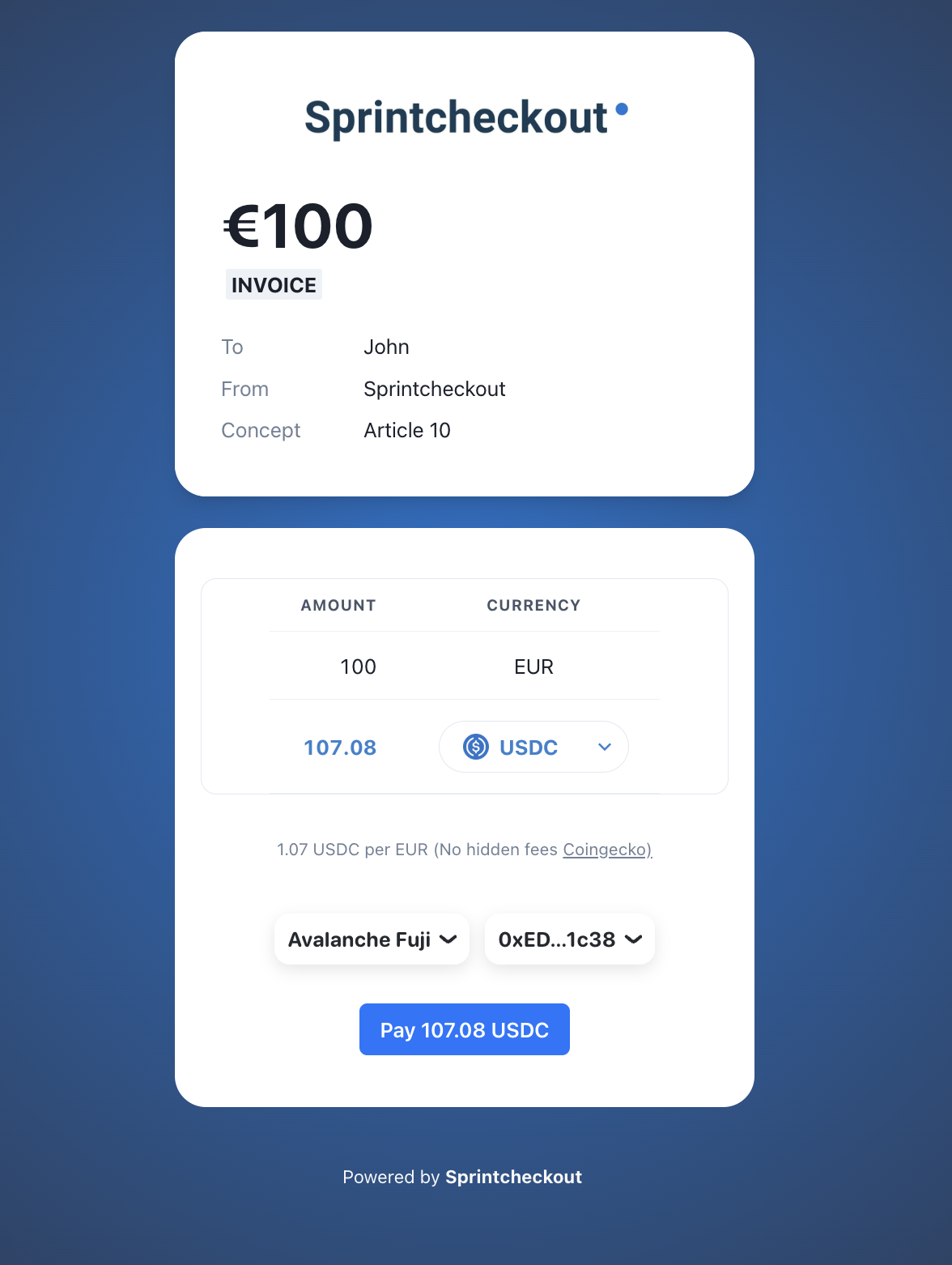
Payment links UI can show invoice details if needed. Select Invoiice on the template selector.
**Invoices**
If you need to get paid in crypto. The most professional and good looking option is Sprintcheckout Invoices.
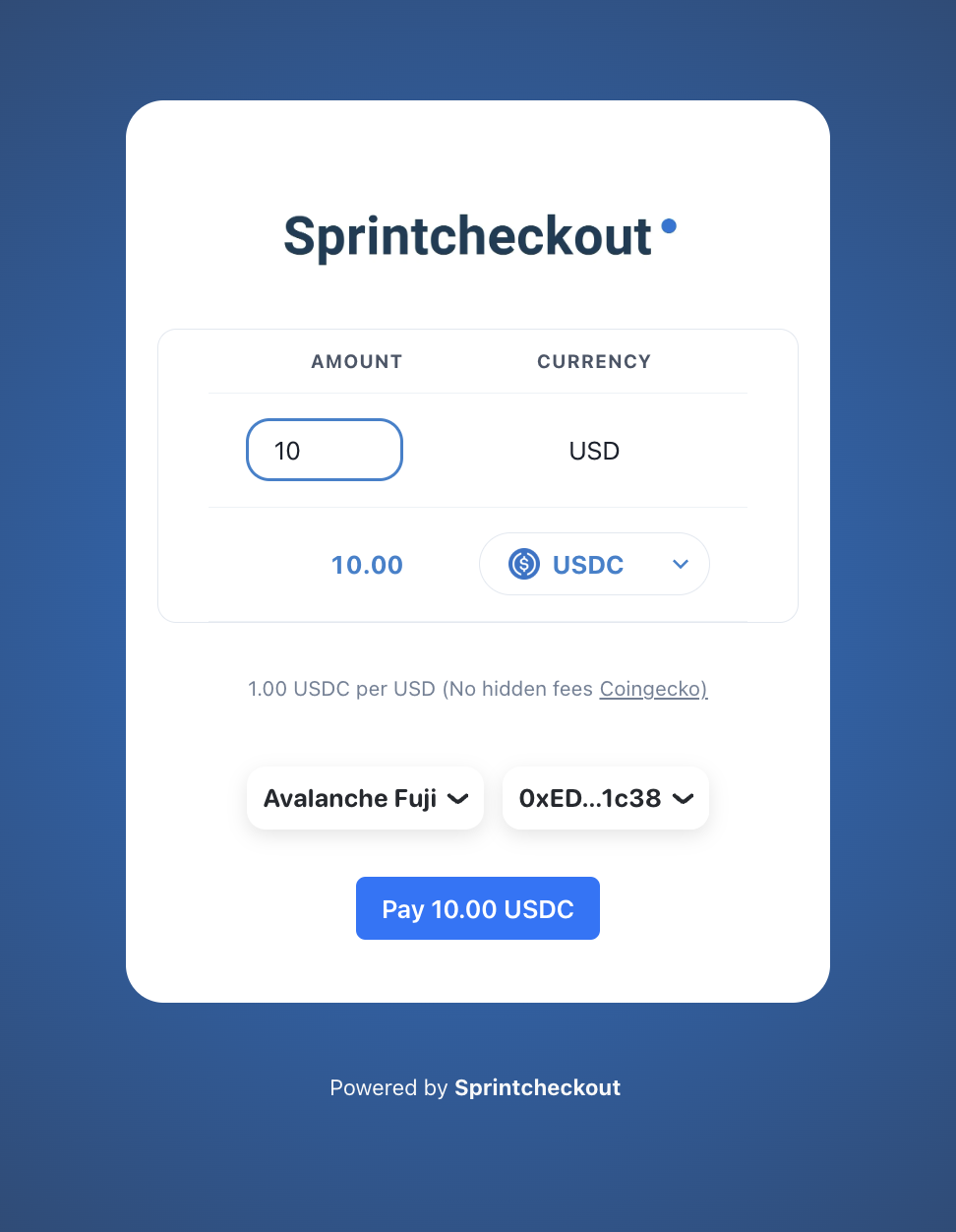
**Light**
If you just need a simple payment UI, select the Light option under templates.
### Static and dynamic amount
If you want the user to be able to modify the payemnt amount, you can do so. Just select "editable" amount. In this case you might want to set up a minimum amount as well.
### One off and permanent payment links
You can create payment links that experire when user sucessfully pays them. Or you can create payment links that can have multiple payments. This is useful for donation type of payment links.
 **Light**
  ### Static and dynamic amount
If you want the user to be able to modify the payemnt amount, you can do so. Just select "editable" amount. In this case you might want to set up a minimum amount as well.
### One off and permanent payment links
You can create payment links that experire when user sucessfully pays them. Or you can create payment links that can have multiple payments. This is useful for donation type of payment links.
### Static and dynamic amount
If you want the user to be able to modify the payemnt amount, you can do so. Just select "editable" amount. In this case you might want to set up a minimum amount as well.
### One off and permanent payment links
You can create payment links that experire when user sucessfully pays them. Or you can create payment links that can have multiple payments. This is useful for donation type of payment links.