> ## Documentation Index
> Fetch the complete documentation index at: https://docs.sprintcheckout.com/llms.txt
> Use this file to discover all available pages before exploring further.
# Quickstart
> Get paid creating payment sessions through our API.
If you're looking for a no code implementation, head over to [Payment Links](/payment-links).
## How to integrate Sprintcheckout payments API
On this guide you can learn how to [create a payment session](/api-reference/sessions/create) and get notification on to your backend via [webhooks](/api-reference/sessions/quickstart#to-integrate-with-sprintcheckeckout-api-follow-this-two-steps).
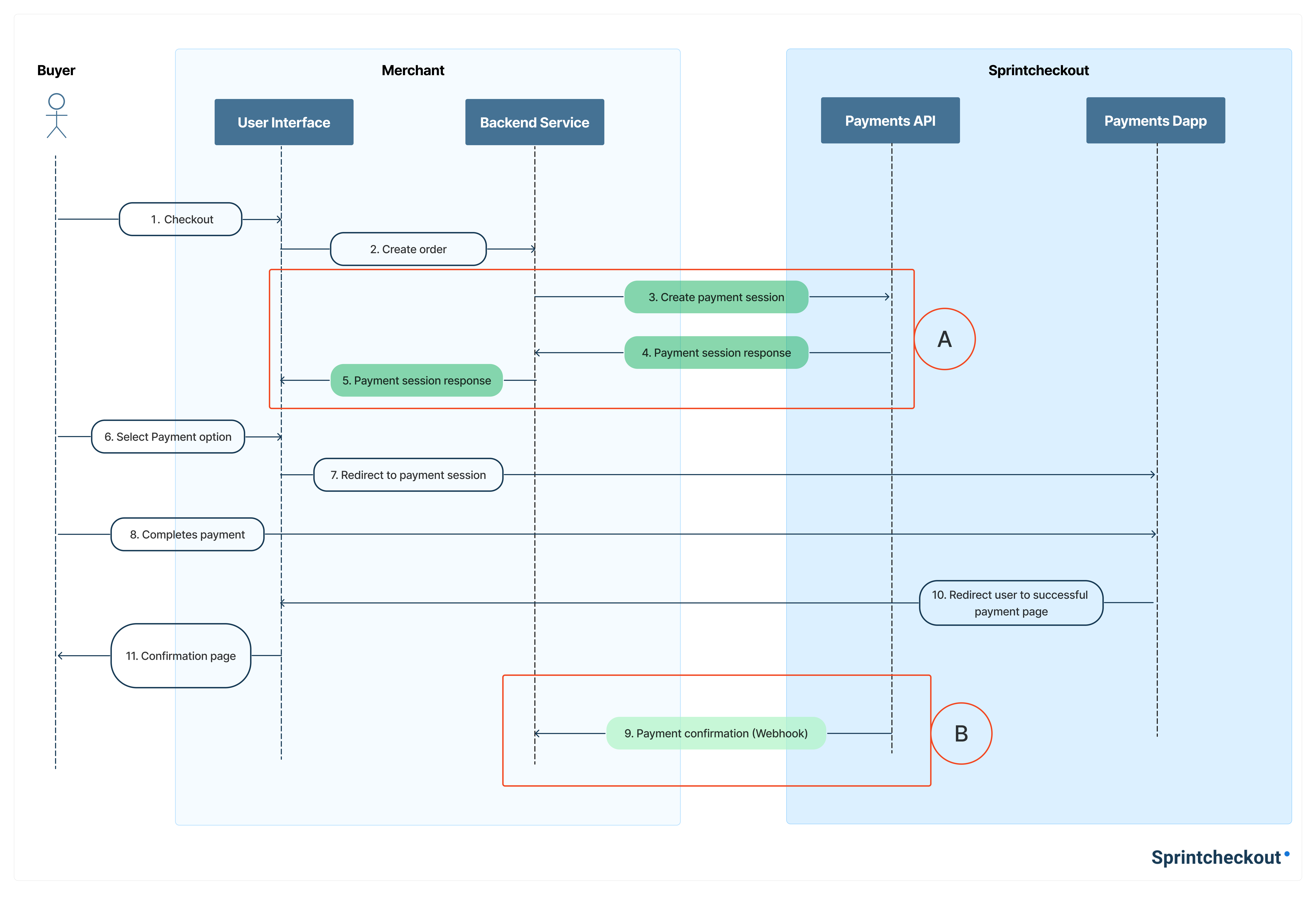
Below you can see a typical integration flow between an ecommerce and a payment gateway.
 To integrate with Sprintcheckout API follow these two steps:
### A. Create payment session and receive a redirect url
Go to [create a payment session](/api-reference/sessions/create) for full API reference.
#### Example request
```bash cURL theme={null}
curl --request POST \
--url https://api.sprintcheckout.com/api/checkout/v2/payment_session \
--header 'Content-Type: application/json' \
--header 'X-SC-ApiKey: ' \
--data '{
"orderType": "STATIC",
"amount": 100.5,
"minAmount": 100.5,
"editable": true,
"currency": "USD",
"orderId": "inv-00010",
"successUrl": "",
"cancelUrl": ""
}'
```
#### Example response
You will receive a json like this:
```bash theme={null}
{
"sessionId": "NjVkY2MzNTI3N2YxZjEwYmE0OWVjN2M2",
"redirectUrl": "https://app.sprintcheckout.com/?uid=NjVkY2MzNTI3N2YxZjEwYmE0OWVjN2M2"
}
```
For some use cases a payment session can accept multiple payments (for example donation links). In that case you can do updates to the payment session, check full API reference on [update a payment session](/api-reference/sessions/update).
### B. Get payment updates via webhook
Received automatically when a payment status changes.
#### 1. Endpoint Setup
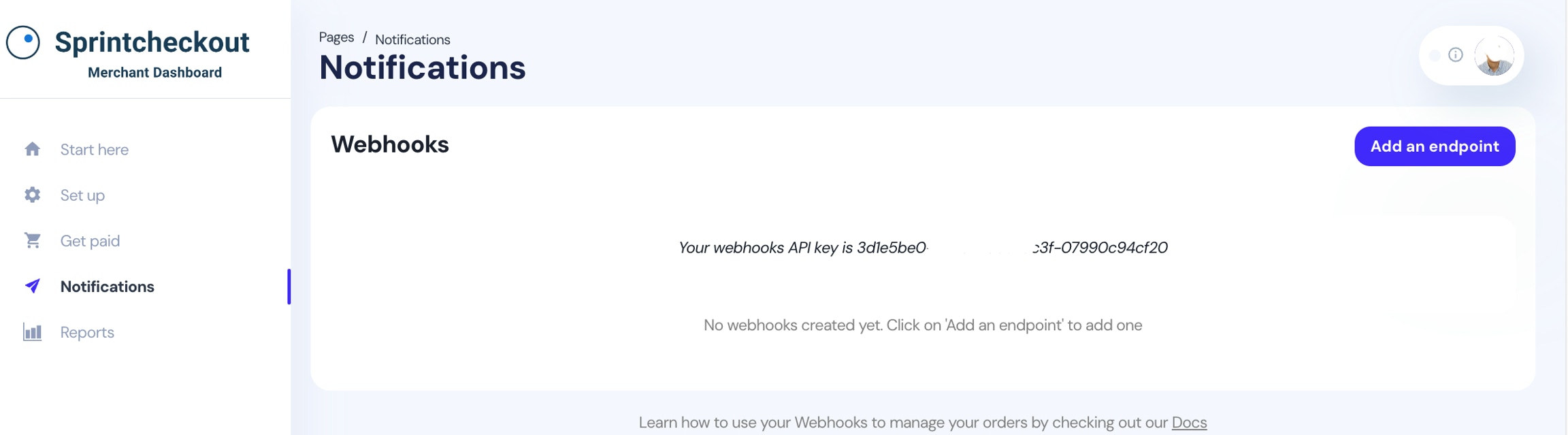
On the Notifications section, you can set up the endpoint to receive the order confirmation.
Set your webhook URL in the [Notifications section](http://dashboard.sprintcheckout.com/#/admin/notifications).
To integrate with Sprintcheckout API follow these two steps:
### A. Create payment session and receive a redirect url
Go to [create a payment session](/api-reference/sessions/create) for full API reference.
#### Example request
```bash cURL theme={null}
curl --request POST \
--url https://api.sprintcheckout.com/api/checkout/v2/payment_session \
--header 'Content-Type: application/json' \
--header 'X-SC-ApiKey: ' \
--data '{
"orderType": "STATIC",
"amount": 100.5,
"minAmount": 100.5,
"editable": true,
"currency": "USD",
"orderId": "inv-00010",
"successUrl": "",
"cancelUrl": ""
}'
```
#### Example response
You will receive a json like this:
```bash theme={null}
{
"sessionId": "NjVkY2MzNTI3N2YxZjEwYmE0OWVjN2M2",
"redirectUrl": "https://app.sprintcheckout.com/?uid=NjVkY2MzNTI3N2YxZjEwYmE0OWVjN2M2"
}
```
For some use cases a payment session can accept multiple payments (for example donation links). In that case you can do updates to the payment session, check full API reference on [update a payment session](/api-reference/sessions/update).
### B. Get payment updates via webhook
Received automatically when a payment status changes.
#### 1. Endpoint Setup
On the Notifications section, you can set up the endpoint to receive the order confirmation.
Set your webhook URL in the [Notifications section](http://dashboard.sprintcheckout.com/#/admin/notifications).
 #### 2. Security
Requests include the header `X-Webhook-Api-Key` (or the key shown on your dashboard).
You should verify this matches your secret key to ensure the request is genuine.
#### 3. Payload Format
The payment notification message will be a JSON `POST` request with this format:
```json theme={null}
{
"event": "payment.succeeded",
"timestamp": 1769339152,
"orderId": "static-id-123",
"amount": 100.5,
"currency": "USD",
"token": "USDC",
"successUrl": "http://successurl.example",
"failUrl": "http://failurl.example",
"cancelUrl": "http://cancelurl.example",
"paymentSessionId": "0a77a733-4323-482c-b646-91cafd48ef6a",
"status": "SUCCESS",
"chain": "polygon",
"receipts": [
"https://polygonscan.com/tx/0x1234567890abcdef1234567890abcdef1234567890abcdef1234567890abcdef"
]
}
```
#### 4. Status Values
Possible values for `status` include:
* `PENDING`: Payment initiated but not yet settled.
* `SUCCESS`: Payment successfully settled.
* `FAILED`: Payment failed or was rejected.
* `EXPIRED`: The session time limit was reached.
#### 5. Retry Policy & Idempotency
* **Retries:** If your server does not return a `200 OK` status, we will retry the notification multiple times (exponential backoff).
* **Idempotency:** Webhooks may be delivered more than once. Use the `paymentSessionId` or `orderId` to ensure you process each Event only once.
#### Dashboard Orders
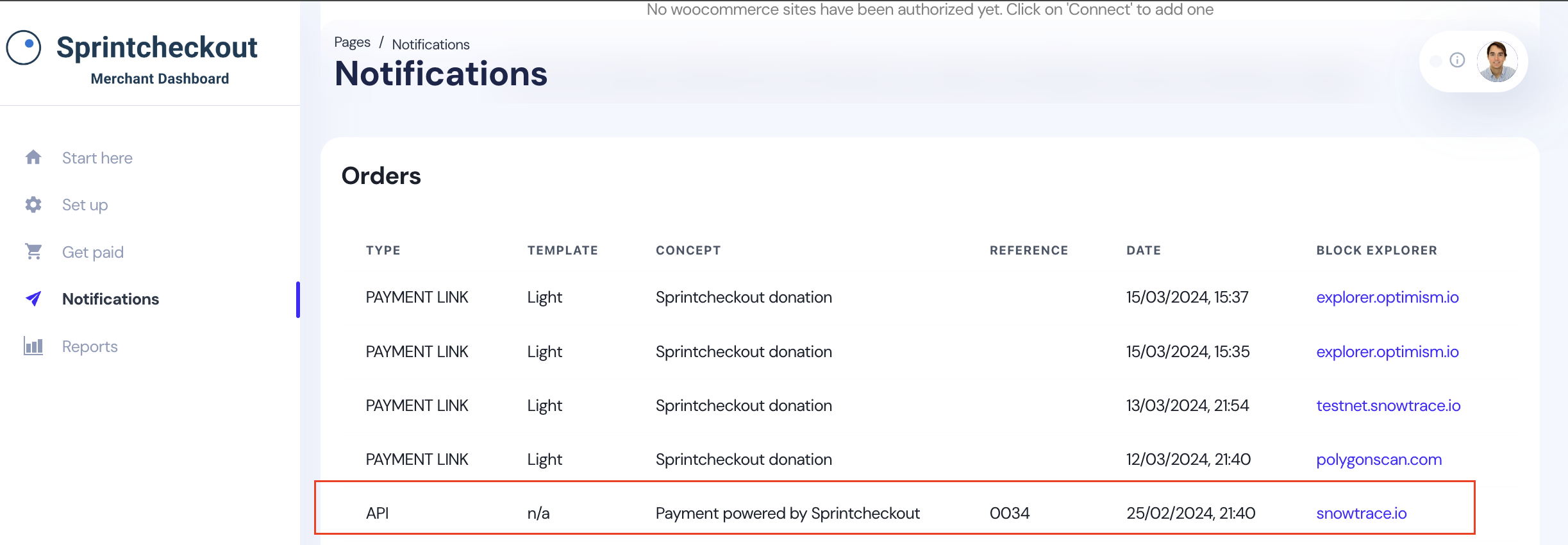
On the [Dashboard > Notifications](http://dashboard.sprintcheckout.com/#/admin/notifications) section you can also find a table where you will find every order you receive via API.
#### 2. Security
Requests include the header `X-Webhook-Api-Key` (or the key shown on your dashboard).
You should verify this matches your secret key to ensure the request is genuine.
#### 3. Payload Format
The payment notification message will be a JSON `POST` request with this format:
```json theme={null}
{
"event": "payment.succeeded",
"timestamp": 1769339152,
"orderId": "static-id-123",
"amount": 100.5,
"currency": "USD",
"token": "USDC",
"successUrl": "http://successurl.example",
"failUrl": "http://failurl.example",
"cancelUrl": "http://cancelurl.example",
"paymentSessionId": "0a77a733-4323-482c-b646-91cafd48ef6a",
"status": "SUCCESS",
"chain": "polygon",
"receipts": [
"https://polygonscan.com/tx/0x1234567890abcdef1234567890abcdef1234567890abcdef1234567890abcdef"
]
}
```
#### 4. Status Values
Possible values for `status` include:
* `PENDING`: Payment initiated but not yet settled.
* `SUCCESS`: Payment successfully settled.
* `FAILED`: Payment failed or was rejected.
* `EXPIRED`: The session time limit was reached.
#### 5. Retry Policy & Idempotency
* **Retries:** If your server does not return a `200 OK` status, we will retry the notification multiple times (exponential backoff).
* **Idempotency:** Webhooks may be delivered more than once. Use the `paymentSessionId` or `orderId` to ensure you process each Event only once.
#### Dashboard Orders
On the [Dashboard > Notifications](http://dashboard.sprintcheckout.com/#/admin/notifications) section you can also find a table where you will find every order you receive via API.